
Help
Everything you need to get a sheet into Google Calendar. Can't find your answer? Email support@calendrow.com.
Install
Launching on the Google Workspace Marketplace in November 2026. This page will link to the listing as soon as it's published. Questions before then? Email support@calendrow.com.
Once installed, Calendrow appears in every spreadsheet under Extensions → Calendrow → Open Calendrow.
Set up a sheet
- Put one event per row, with a header row at the top (for example
Shift,Start,End,Location). - Open Extensions → Calendrow → Open Calendrow. Calendrow guesses your columns from the headers; check them.
- Under Calendar, click Create calendar. Calendrow makes a calendar for this sheet that you can share or show alongside your others.
- Click Preview to see what will be created, updated or skipped, then Sync.
After that, edit the sheet whenever you like and click Sync again. Only rows that changed are updated.
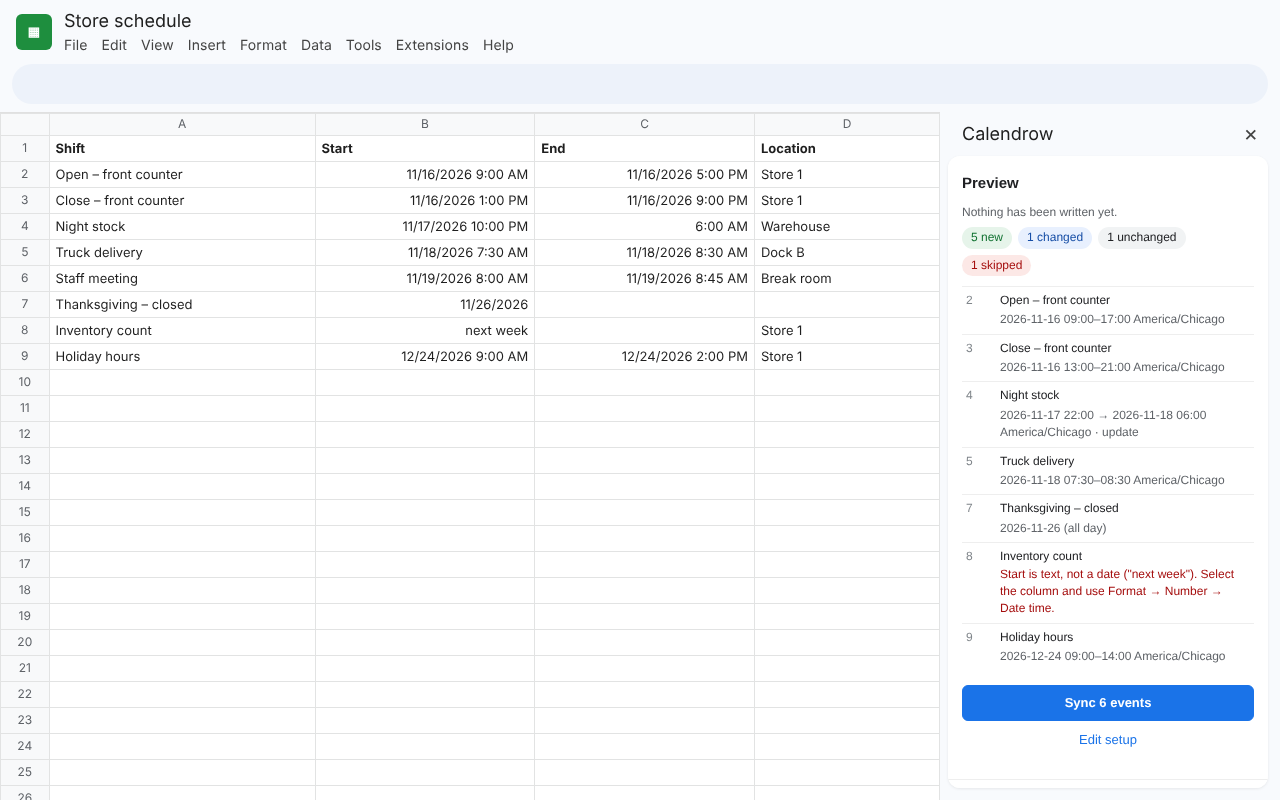
Columns Calendrow can use
| Field | Required? | What to put in it |
|---|---|---|
| Title | Yes | The event name. |
| Start | Yes | A date (11/26/2026) for an all-day event, or a date and time (11/16/2026 9:00 AM). |
| End | No | A date and time, or just a time (6:00 AM). A time earlier than the start means the next day, so overnight shifts work. |
| Duration | No | Use instead of End: minutes (90) or hours:minutes (1:30). With no End or Duration, events last 1 hour. |
| All-day | No | A checkbox or yes/no column to force all-day events. |
| Location, Description | No | Any text. |
Dates and times
Calendrow reads dates the way Google Sheets understands them. A real date lines up on the right side of its cell; text lines up on the left. AM/PM (9:00 PM, 9:00 pm) and 24-hour times (21:00) both work.
- Time zone: times are read in the spreadsheet's time zone (File → Settings) unless you pick another in setup. Daylight saving is handled by Google Calendar, so 9:00 stays 9:00 all year.
- Midnight:
11/19/2026 12:00 AMmakes a timed event starting at midnight;11/19/2026makes an all-day event. - Day/month order: Sheets uses your spreadsheet's locale (File → Settings → Locale) to decide whether 11/9 means November 9 or 11 September.
What the status columns mean
| Sync status | Meaning |
|---|---|
| Created | A new event was added. |
| Updated | The row changed, or the event was edited or deleted in Calendar, so it was brought back in line with the sheet. |
| Unchanged | The event already matches the row. Nothing was sent. |
| Skipped | The row has a problem. The Sync message says what to fix. |
| Error | Google returned an error. The Sync message explains it; most errors clear up if you sync again. |
Sync messages and how to fix them
| Message | What to do |
|---|---|
| Start is text, not a date | Select the column and choose Format → Number → Date time, or retype the date so Sheets recognizes it. |
| Start is a plain number | The column is formatted as Number. Choose Format → Number → Date time. |
| Title is empty / Start is empty | Fill in the cell, or leave the whole row blank to skip it silently. |
| End is before or equal to Start | Fix the End date or time. For overnight shifts, an End with only a time (like 6:00 AM) rolls to the next day. |
| Start … doesn't exist: clocks spring forward that night | That time is skipped by daylight saving (for example 2:30 AM on a spring-forward night). Use the suggested time or later. |
| … has a formula error (#REF!, #N/A, #DIV/0!…) | Fix the formula in that cell. |
| Duration … isn't understood | Use minutes (90) or hours:minutes (1:30). |
| Free plan limit reached | The free plan creates 100 new events per month. Rows over the limit are marked and will sync next month or after upgrading. |
| Calendar not found | The calendar was deleted. Open setup and choose or create another calendar. |
| Google is rate-limiting requests | Wait a minute and sync again. Nothing is duplicated. |
| This sheet is synced by another person | Only the person who set up a sheet can sync it. Ask them to sync, or make a copy (File → Make a copy) to sync your own. |
How syncing works
- The sheet is the source of truth. If someone edits or deletes a synced event in Google Calendar, the next sync puts it back to match the sheet.
- Hidden ⚙ columns (Event ID, Calendar ID, Row hash) link each row to its event. They move with the row when you sort. Please don't delete them; without them, the next sync creates new events.
- Deleting a row leaves its event in the calendar. Delete the event in Calendar if you no longer need it. Automatic cleanup is planned.
- Switching calendars in setup moves events to the new calendar.
- One person per sheet: the person who sets up a sheet is the one who syncs it.
- Calendrow never sends invitations or emails to anyone.
- The Google Sheets mobile apps don't support add-on sidebars; use a computer.
Remove Calendrow and your data
- Remove the add-on: in Sheets, Extensions → Add-ons → Manage add-ons, then Calendrow → Remove.
- Revoke its access: myaccount.google.com/permissions.
- Delete a Calendrow calendar: in Google Calendar, open the calendar's Settings and sharing and choose Remove calendar.
- Delete the sync columns from your sheet like any other column.